Turn prep windows into a real day plan before the bell rings.
Most teacher planners stop at the lesson grid. Planlark keeps going: it looks at the real class schedule for the day, identifies the prep windows around instruction, and lets Lark fill those windows with the tasks and project work that actually matter. Instead of carrying a separate checklist, you get a realistic day plan built around the school day you are actually teaching.
What the AI can do
AI can fill before-school, lunch, and after-school windows with scheduled day-plan items built from your open work.
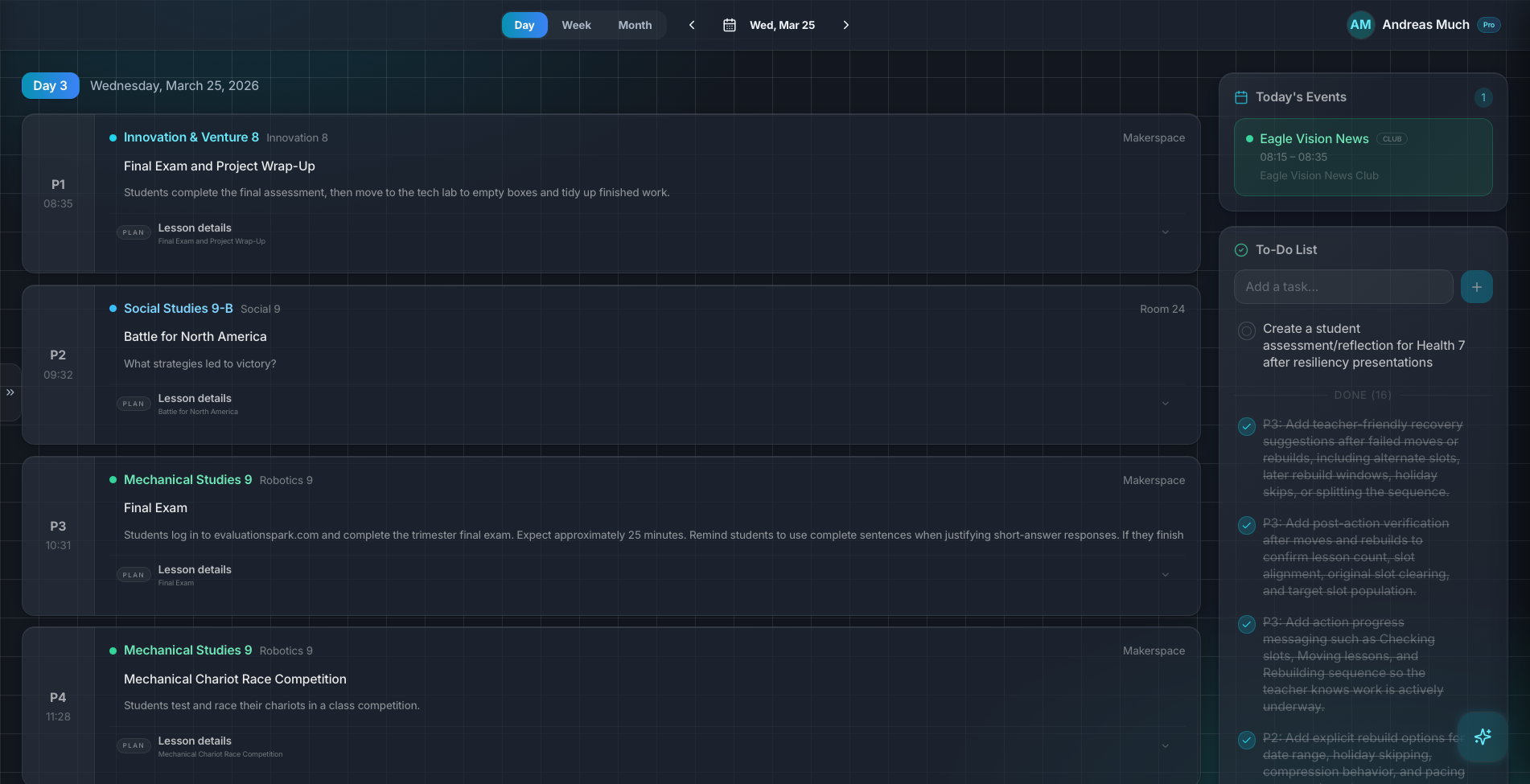
Day planning starts from the real teaching schedule instead of a generic workday template.
Context aware
Connected to the weekly planner, schedule rules, and unit structure.
Teacher controlled
You review and refine changes instead of handing the whole process away.
Built for school reality
Designed around shifting timetables, real curriculum work, and mid-week edits.
Where AI Day Planning fits into the planning week.
Use actual class blocks to identify before-school, lunch, and after-school planning windows for each date.
Schedule due-soon, high-priority, and project-linked work into those windows instead of leaving it as a loose checklist.
Keep scheduled prep work visible beside the day planner so teaching and prep stay in the same workflow.
Real reasons teachers reach for this feature.
Morning setup
Open the day planner, click Plan My Day, and let Lark schedule the most urgent prep before the first class starts.
Lunch triage
Use a lunch window for one short grading or communication block instead of overloading the whole day with vague reminders.
After-school focus
Reserve the larger after-school window for longer project work, planning, or report-card preparation.
What it looks like when a teacher actually uses it.
These example prompts and outcomes show the kind of planning work this feature is designed to handle.
Prompt
"Plan my day for tomorrow. Use the open prep windows, prioritize the tasks due this week, and schedule project work after school."
Outcome
Planlark creates scheduled day-plan items in the correct windows and leaves any overflow as unscheduled work still visible for later.
Prompt
"Use lunch only for short admin tasks and leave larger prep for after school."
Outcome
The AI keeps lunch blocks short, shifts longer work later, and schedules the day accordingly.
Prompt
"Fill today around my classes but leave the after-school window free."
Outcome
Planlark uses before-school and lunch windows only, then skips the after-school block.
Keep exploring the planning workflow.
Related help
Learn how to use this in the product.
Getting Started
How to get started with Planlark
Set up your schedule, classes, and first planning workflow so the weekly planner, units, and AI actions all use the right school context.
Read help guideCurriculum
How to import curriculum and outcomes in Planlark
Paste curriculum text or ask Lark to import a framework, then review sub-outcomes, guiding questions, QA warnings, and shared-library approval before planning from it.
Read help guideUnit Planning
How to build units and lesson sequences in Planlark
Use the Unit Planner to create a unit, add source material, generate lesson sequences on real dates, and keep outcomes tied to the plan.
Read help guideRelated features
Keep exploring the workflow.
Scheduling
Auto-Scheduled Plans
Units and lesson sequences can land on real class dates automatically using your rotation, holidays, and calendar overrides.
Read feature pageCalendar
Calendar Command Center
Your planner stays connected to the actual school calendar, not a generic week view.
Read feature pageReflection
Daily Debrief
Quick end-of-day reflection becomes planning memory instead of getting lost in notes.
Read feature pageEarly access
Try AI Day Planning inside the full planner
Join the waitlist to see how Planlark connects weekly planning, AI actions, schedule logic, and curriculum tracking.
No credit card required. Early access updates only.