From a lesson to a printed worksheet, objectives first.
Pick a class, lesson or unit and PlanLark already knows the subject, grade and objectives. Choose activity types, set the language and level, and Lark generates the items and checks each one against the objectives. Every question is yours to edit or regenerate. The preview shows the actual pages that will print — a Student version with no answers and a Teacher version with the answer key.
What the AI can do
AI generates the items from your objectives and source material, checks them, and regenerates any single question you ask it to. It suggests an image to look for; you add the image.
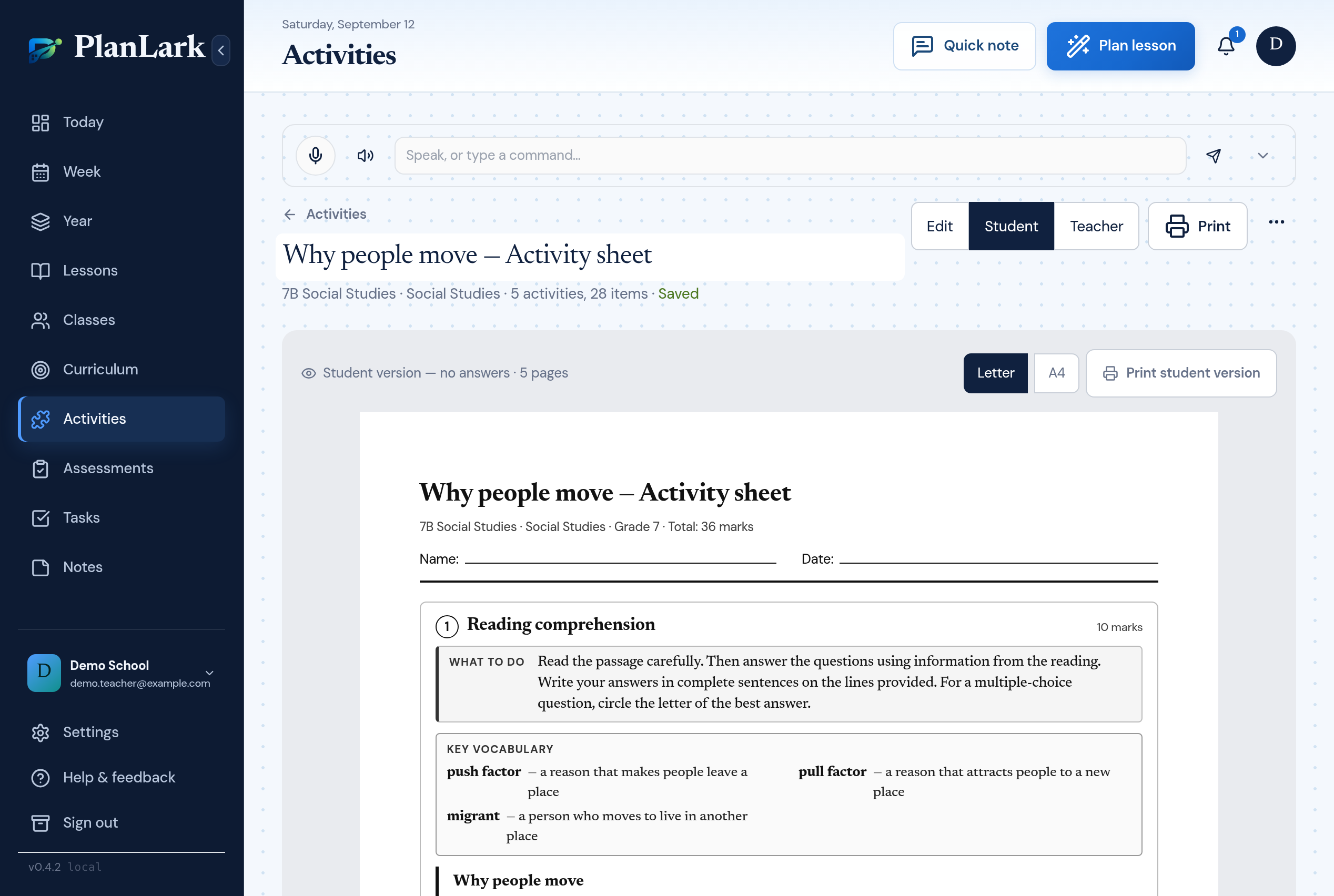
Student preview — the pages on screen are the pages that print.
Context aware
Connected to the weekly planner, schedule rules, and unit structure.
Teacher controlled
You review and refine changes instead of handing the whole process away.
Built for school reality
Designed around shifting timetables, real curriculum work, and mid-week edits.
Where Activity Builder fits into the planning week.
Eleven activity types: matching, fill in the blanks, sorting, reading comprehension, multiple choice, true/false, short answer, vocabulary practice, sequencing, word search and diagram labeling.
Practice test mode with a blueprint that spreads questions across your objectives.
Objectives come from the class curriculum, the lesson or the unit — or you type them — and objective coverage shows how many items practise each one.
Edit any question or answer in place; regenerate one item, add more, or rewrite an activity at a simpler or more challenging level.
Student version (no answers) and Teacher version (answer key with evidence) from the same sheet.
A paginated preview in Letter or A4 that matches the printout: activities kept whole where they fit, headings never left alone, page numbers on every page.
Reading and language controls: the language of the sheet, a reading level from primary to advanced (including CEFR A1–C1), and difficulty.
Three worksheet styles that print cleanly in black and white, a “What to do” panel with clear instructions under every activity, word banks, an optional key-vocabulary box and callouts.
A picture slot on readings: Lark suggests what to look for; you add the image with its caption and source.
Sheets save with your lesson, can be duplicated, and reopen in the editor any time.
Real reasons teachers reach for this feature.
The lesson is planned, the worksheet is not
Open the lesson, choose Create Activity, and the objectives and material are already filled in. Pick matching and short answer, generate, print.
A practice test before the unit test
Switch to Practice test, set the share of questions per objective, and get multiple choice, true/false, matching and short answer sections with marks and a teacher key.
A2 German reading practice
Paste a short text, set German at A2, and the passage, questions and student instructions come out at that level. Simplify or raise the level of any activity afterwards.
What it looks like when a teacher actually uses it.
These example prompts and outcomes show the kind of planning work this feature is designed to handle.
Prompt
Lesson: Why people move (7B Social Studies) · Objectives: identify push factors, explain pull factors · Types: reading comprehension, matching, sorting
Outcome
A three-activity sheet: a reading with five questions and an evidence-based answer key, six matching pairs, and a push/pull sorting table — with every item tagged to an objective and a Student and a Teacher version ready to print.
Prompt
Question 4 is too easy.
Outcome
Regenerate just that question; the rest of the sheet stays as it is.
Prompt
Switch the sheet to A4.
Outcome
The preview repaginates and the printout matches it page for page.
Prompt
Word search from the vocabulary.
Outcome
A grid built from the lesson’s key words, with directions stated in the instructions and the solution on the teacher version.
Keep exploring the planning workflow.
Related help
Learn how to use this in the product.
Activities
How to create activity sheets and practice tests
Build a worksheet from the objectives of a lesson, edit any question, and print a Student version and a Teacher version with the answer key.
Read help guideGetting Started
How to set up your teacher planner
Enter your classes and timetable once, and PlanLark plans every lesson on the dates those classes actually meet.
Read help guideCurriculum
How to connect curriculum outcomes to lessons
Choose the curriculum objectives each class covers this year, attach them to the lessons that teach them, and let coverage build itself.
Read help guideRelated features
Keep exploring the workflow.
Scheduling
Auto-Scheduled Plans
Units and lesson sequences can land on real class dates automatically using your rotation, holidays, and calendar overrides.
Read feature pageCalendar
Calendar Command Center
Your planner stays connected to the actual school calendar, not a generic week view.
Read feature pageReflection
Daily Debrief
Quick end-of-day reflection becomes planning memory instead of getting lost in notes.
Read feature pageEarly access
Try Activity Builder inside the full planner
Join the waitlist to see how Planlark connects weekly planning, AI actions, schedule logic, and curriculum tracking.
No credit card required. Early access updates only.